
 Contact



The file usually needs to be a readable CSV with a header row and usable address records.
Open the list uploaderStep-by-step, with the real screens, below.
In short
Check these first:
- Is the file a CSV?
- Does it have a header row?
- Is there a street-address column?
- Is there a ZIP-code column?
- Are there address rows below the header?
Some issues can produce a warning without rejecting the whole file. Read the message shown by the uploader before changing the data.
If the file still fails, contact L&B rather than repeatedly uploading sensitive recipient data into an unknown state.
What usually causes it
- The file is a .xls, .numbers or .ods file rather than a CSV or .xlsx.
- There is no header row, so the columns cannot be identified.
- Title or summary rows sit above the headings.
- There is no address column — a list of names and emails cannot be mailed.
- The file is empty, or every row is blank.
Step by step
Step 1: Read the message under the upload area
The uploader says what it could not find, and nothing is added to your cart. The message names the column it is missing, says that no row had both a street address and a usable ZIP code, or tells you the file had no addresses it could read. Find it in the list under If something goes wrong for what to change.
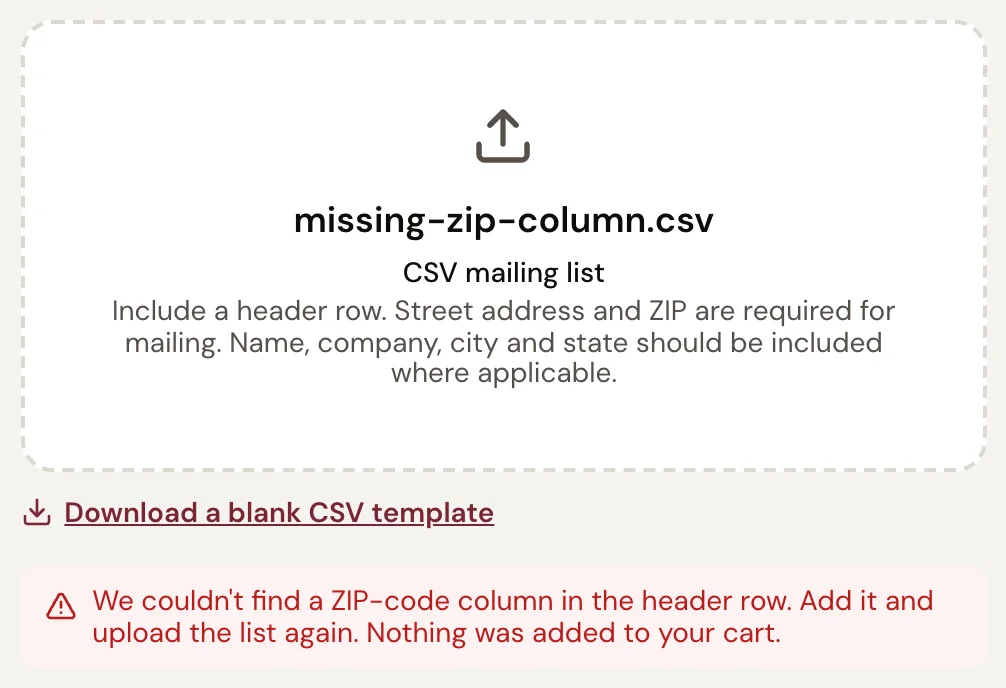
- A: The file you uploaded
- B: What the uploader could not find
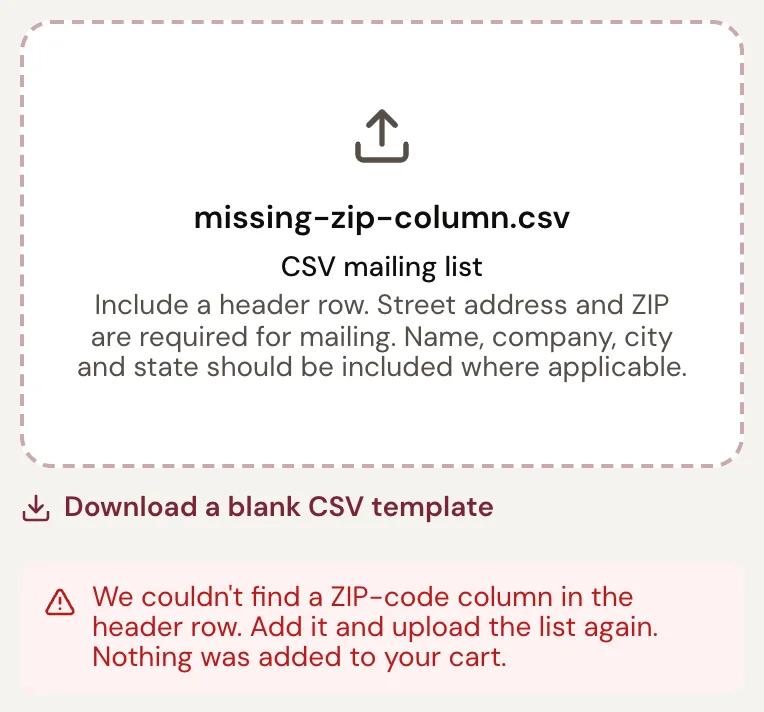
- A: The file you uploaded
- B: What the uploader could not find
Counts and prices in the screen are an example; yours are calculated live. What you should see. A red message under the upload area, with your file’s name above it.
Step 2: Check the file type
The uploader reads a CSV or an Excel workbook (.xlsx). A .numbers, .xls or .pages file is not read: export it as CSV from your spreadsheet program (in Excel: File › Save As › CSV) and upload that.
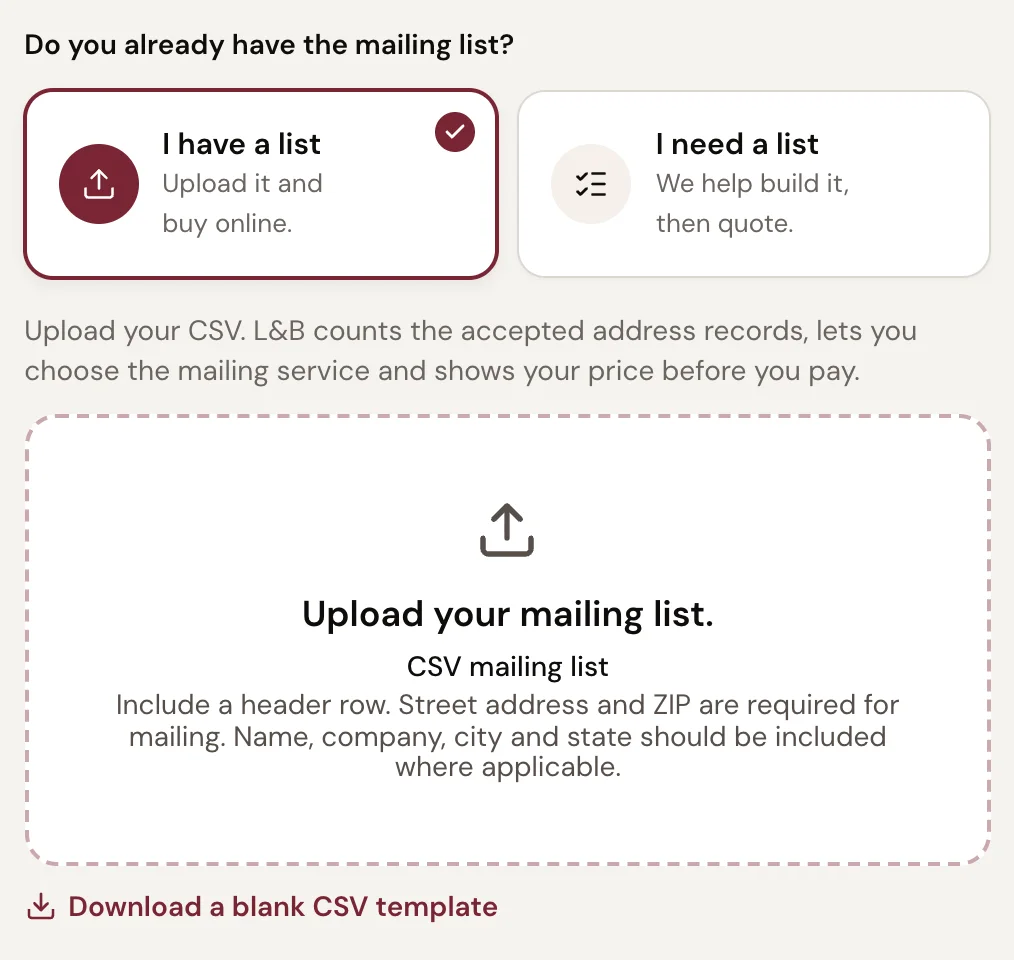
- A: I have a list
- B: The upload area: click it, or drop the file on it
- C: A blank template with the headings and two example rows
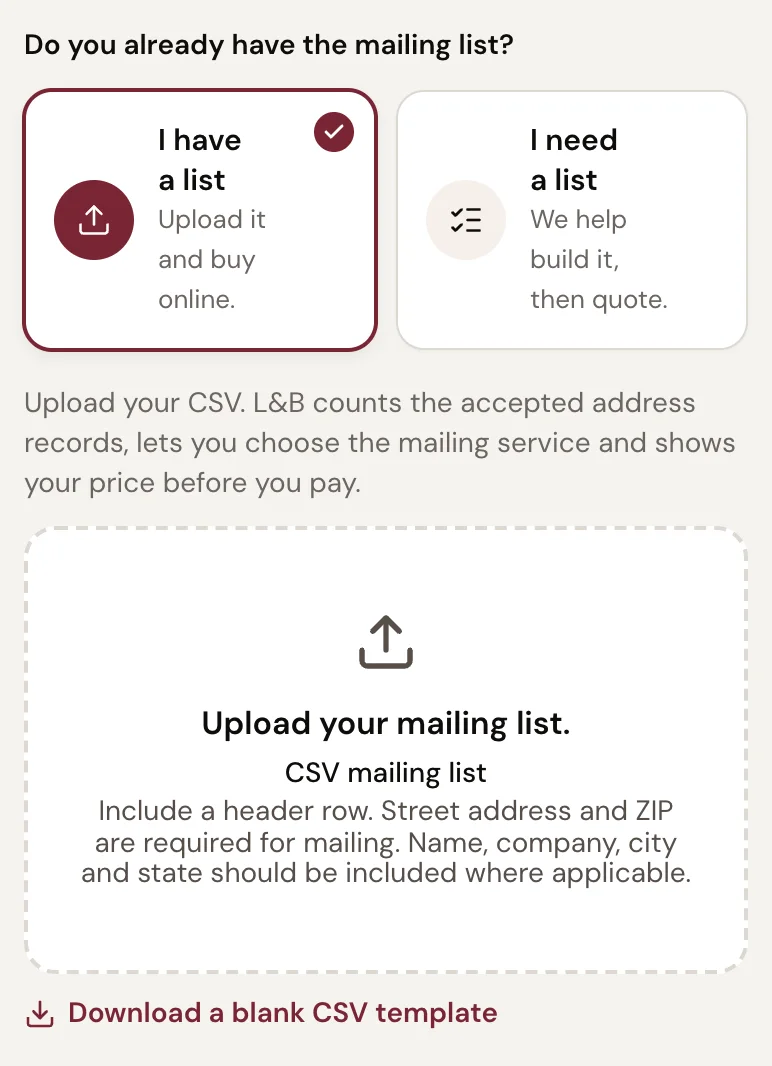
- A: I have a list
- B: The upload area
- C: A blank template with the headings and two example rows
Counts and prices in the screen are an example; yours are calculated live. What you should see. A file whose name ends in .csv or .xlsx.
Step 3: Check the headings and the rows
The first row must be the headings, with a street-address column and a ZIP-code column; the addresses go on the rows beneath, each with its street address and a usable ZIP code. A file with only a heading row, or nothing in it, is refused — and so is one in which no row has both.
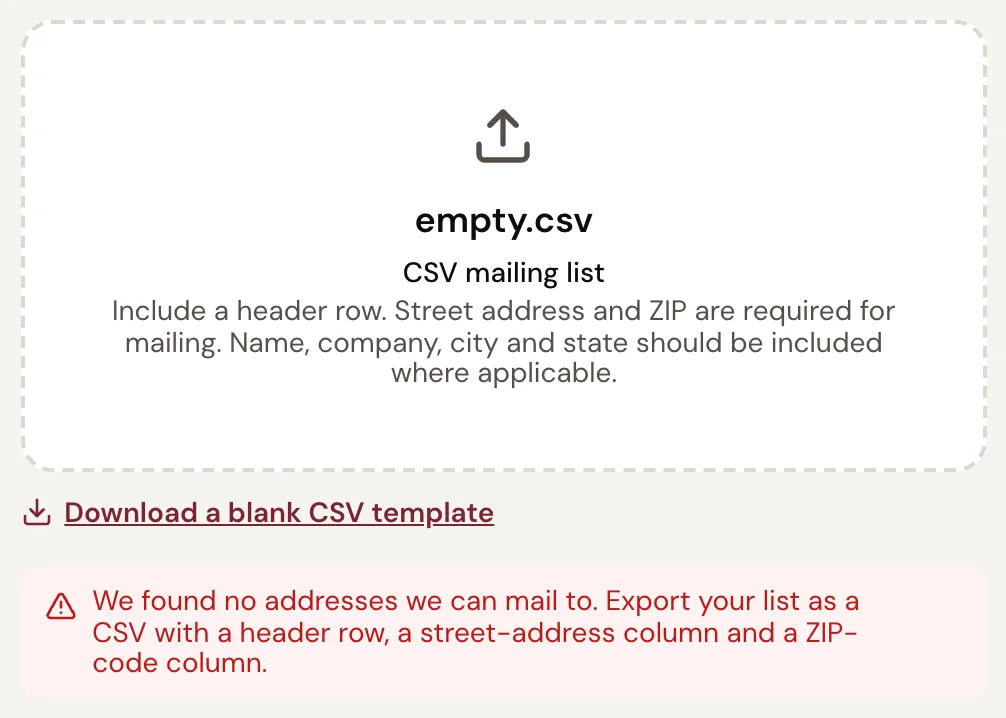
- A: The file you uploaded
- B: No rows could be read
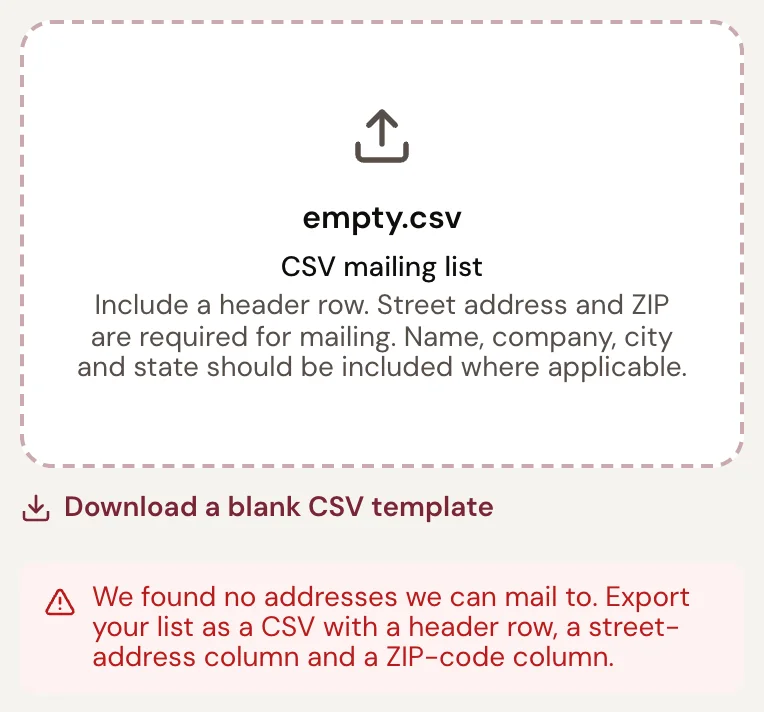
- A: The file you uploaded
- B: No rows could be read
Counts and prices in the screen are an example; yours are calculated live. What you should see. A heading row with Street Address and Zip, and at least one address row with both filled in.
Step 4: Upload the corrected file
Click the upload area again and choose the fixed CSV. The count replaces the message, and the mailing service step appears beneath it.
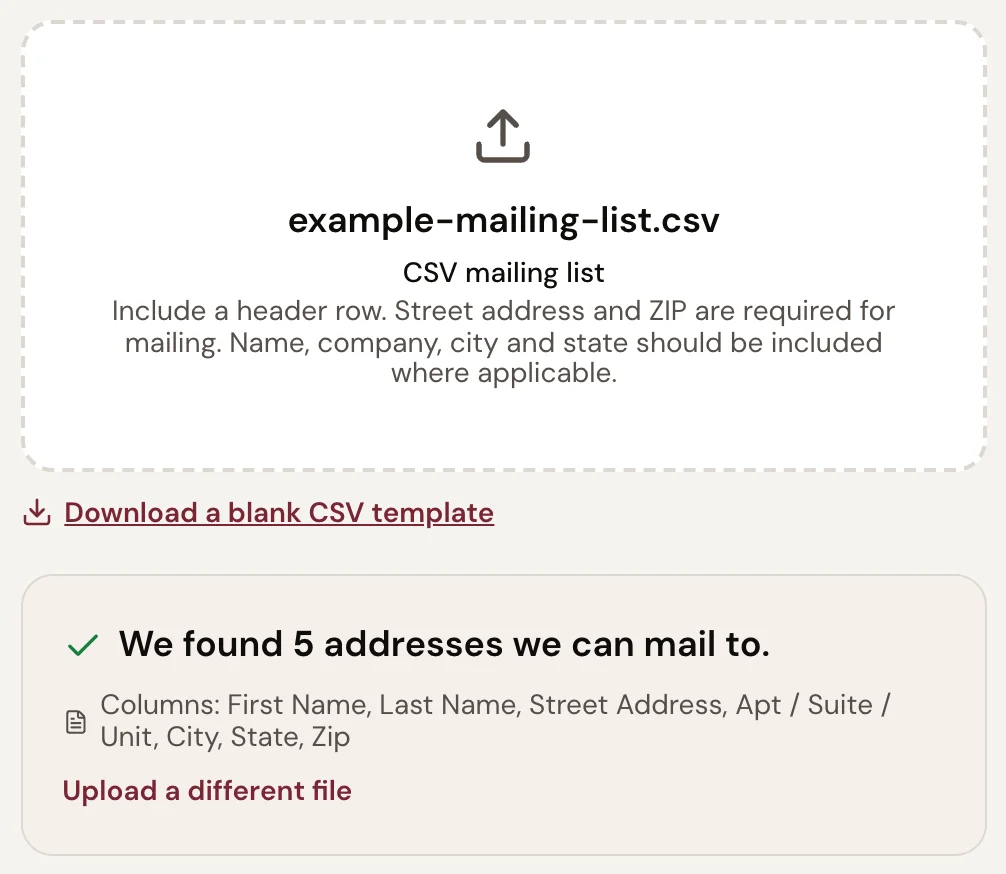
- A: The file you uploaded
- B: How many rows can be mailed
- C: The columns found in the file
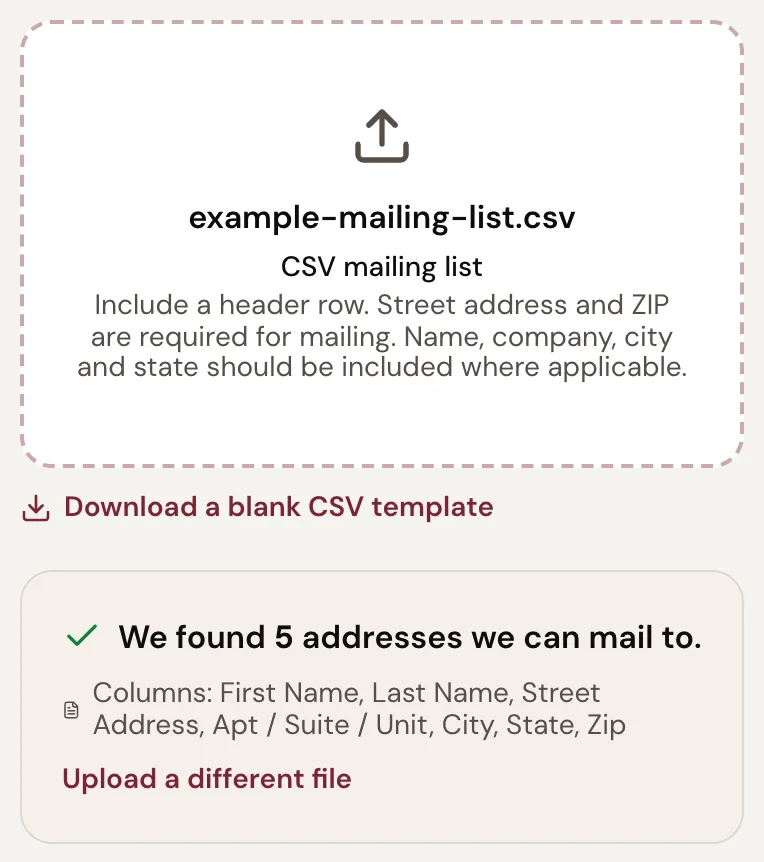
- A: The file you uploaded
- B: How many rows can be mailed
- C: The columns found in the file
Counts and prices in the screen are an example; yours are calculated live. What you should see. We found … addresses we can mail to.
If something goes wrong
“We couldn't find a street-address column or a ZIP-code column in the header row. Add them and upload the list again. Nothing was added to your cart.”
The first row has no heading the uploader recognizes as a street address or a ZIP code. Under the message, Or tell us which column is which lets you choose the street-address and ZIP-code columns yourself; choose Use These Columns to send the list. Or name the two columns as in the table (Street Address, Zip) and upload again. When the message names only the street-address column, or only the ZIP-code column, the other one was found.
“We couldn't read that spreadsheet. Save it as CSV from Excel: File › Save As › CSV, then upload the .csv file.”
The file is a .numbers, .xls or other spreadsheet the uploader cannot open, or an .xlsx file it could not read. Open it in your spreadsheet program, save or export it as CSV, and upload the .csv file.
“… rows have no street address or no valid ZIP code and were not counted (rows …).” — an amber note beneath a count
The list was accepted without those rows; the count above the note is the quantity the mailing is priced on. The row numbers count the heading as row 1, as your spreadsheet does. A ZIP needs 3 to 5 digits, with an optional 4-digit extension; letters or spaces make it unusable, while a ZIP that lost its leading zero in a spreadsheet (8876) is still counted. Fix the rows and choose Upload a different file to include them.
“… rows have no street address or no valid ZIP code and were not counted (rows …). Nothing was added to your cart.” — a red message, with no count
No row had both a street address and a usable ZIP code, so the list was not accepted and there is no count. The row numbers count the heading as row 1, as your spreadsheet does. Go down the two columns row by row: the street address cannot be blank, and a ZIP needs 3 to 5 digits with an optional 4-digit extension — letters or spaces make it unusable. Save as CSV, then click the upload area again and choose the fixed file.
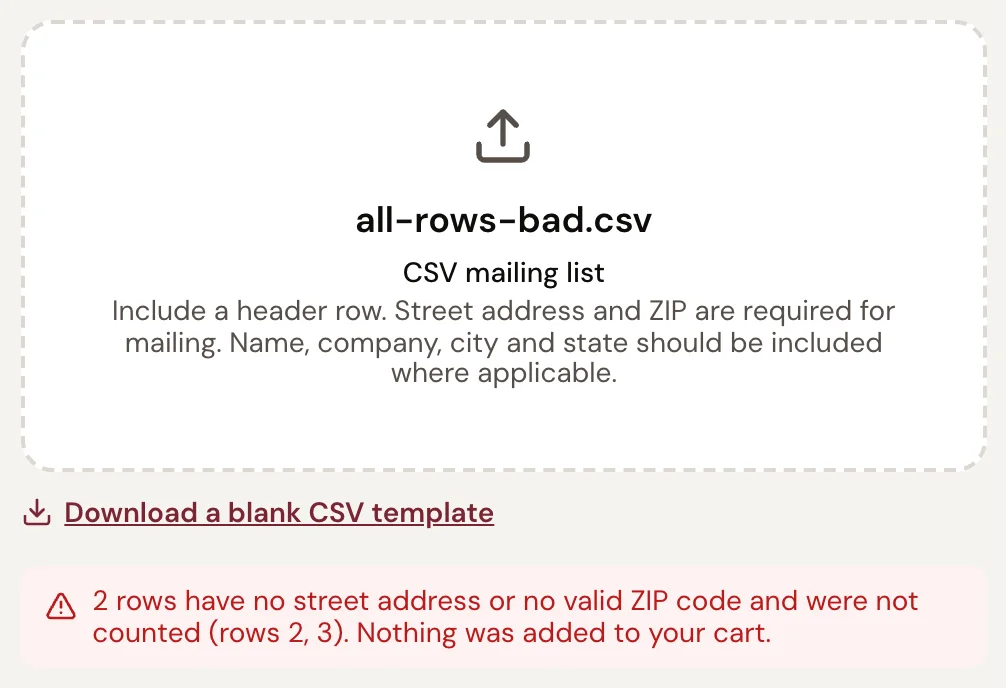
- A: The file you uploaded
- B: Every row was unusable, so the list was not accepted
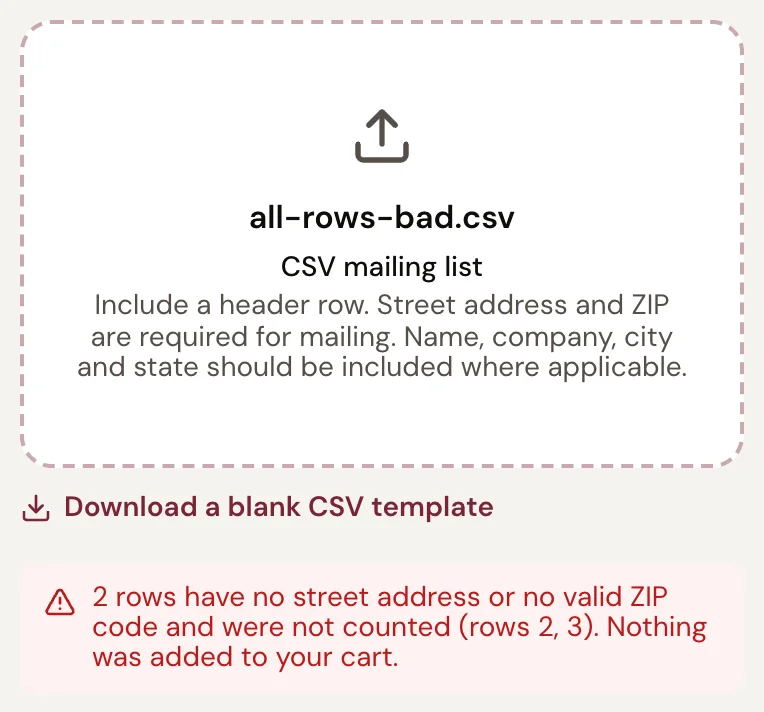
- A: The file you uploaded
- B: Every row was unusable, so the list was not accepted
“No state column detected.”
The list was accepted. Add a State column with the two-letter code (NJ) if you can: checkout uses it to work out sales tax on the mailing, and without it the whole mailing is treated as taxable.
Why am I charged sales tax?“We found no addresses we can mail to. Export your list as a CSV with a header row, a street-address column and a ZIP-code column.”
The file is empty, or has only the heading row. Check that the addresses are on the rows beneath the headings, save as CSV and upload again.
“Could not read that file. Please upload a CSV (.csv).”
The file could not be read as text. Export it from your spreadsheet program as CSV and upload the .csv file.
“File too large (max 25MB).”
Remove columns the mailing does not need, such as notes or purchase history, and save again. A list that large is also a mailing worth planning with L&B first.
Plan with an Expert — Free“Too many uploads. Please wait a moment and try again.”
Wait a minute, then upload once more.
“Upload failed. Please try again, or call us at 908.232.7770.”
The connection dropped before the file arrived. Check that you are online and upload again. If it keeps failing, call L&B.
“Mailing-list upload is temporarily unavailable. Please try again shortly.”
Try again in a few minutes. If it persists, contact L&B.
Contact L&B“This design is already on an order and can no longer be changed. Start a new design to make changes.”
This mailing has already been ordered, so its list is locked. Reload the Addressed Postcards page to start a new mailing, or contact L&B about the order.
“Missing file or design_id.” or “Invalid design_id.”
The page lost track of the mailing it was building. Reload the Addressed Postcards page and upload the list again.
Next
- Open the list uploaderUpload the corrected file.
- How to prepare the CSV, step by stepThe columns, the export and the result, on the real screens.
- Contact L&BIf the file still fails.